
Why is Earned Wage Access Limit Zero or Not Increasing? Causes and Solutions
Why is Earned Wage Access Limit Zero or Not Increasing? Causes and Solutions
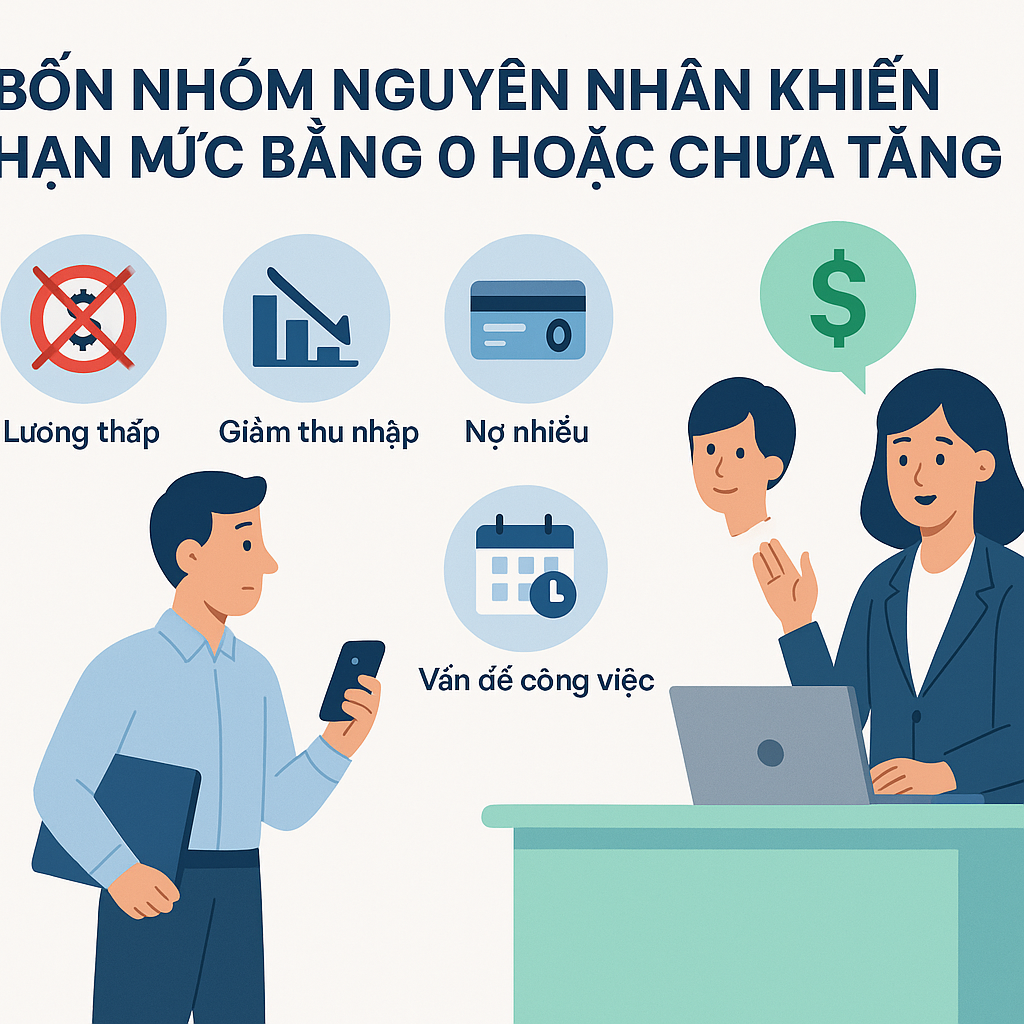
An earned wage access limit of zero or not increasing is not necessarily an app error. The system only calculates money from approved workdays, then deducts received amounts during the period along with the reserve hold. Employee records, clients, timekeeping codes, ID, and VPBank accounts must also match. Employees should sequentially check workplace → work status → synchronization timing → reserve and received amounts → verification records before submitting a support request.
> Note: Configuration values mentioned in the article are default and may be adjusted by Nhan Kiet. The official status names and display screens on the app at the time of use are information employees need to verify.
Quick Answers by Symptoms
App Symptoms | Most Common Causes |
|---|---|
No workplace visible | Records/assignments from ERP not synchronized or incorrect effective date |
Workplace visible but no work shown | Incorrect timekeeping code, source data not synchronized, or timekeeping not matched |
Work visible but status pending | NK/client supervisor not approved or work recently modified |
Approved work but money is zero | Work falls under reserve hold, fully received, or configuration not applied |
Available amount but cannot create order | Below minimum, exceeds cap, records/account not meeting conditions |
Order created but money not received | Transaction processing or awaiting bank reconciliation |
Do not create a new account, change ID, or ask someone else to withdraw on your behalf to “try again.” These methods may complicate data reconciliation and increase security risks.
1. First: “Limit Zero” is Different from “Cannot Withdraw Money”
Three situations are often collectively referred to as “no money”:
No Wage Data
The app does not have valid workdays to calculate. Causes usually relate to records, work tables, or approval status.
Wage Data Exists but Available Amount is Zero
The system has work data, but the amount available after reserve hold and received amounts is zero or below the minimum.
Available Amount Exists but Transaction Blocked
The amount is displayed, but the user does not meet conditions regarding ID, VPBank account, daily limit, client status, or safety controls.
Correct differentiation helps direct tickets to the right place. Supervisors cannot handle bank errors; the payment department cannot approve work on behalf of clients without authority.
2. How is the Earned Wage Access Limit Formed?
(Background concepts: see What is Approved Work? and What is Earned Wage Access?.)
According to the verified system:
Available Amount = Approved Work x Daily Rate - Received During Period - Reserve Hold
The result is rounded down to the nearest multiple of 1,000 VND, then further checked against minimum levels, per order cap, daily cap, and safety conditions.
To increase the number, at least one valid change must occur, such as:
adding eligible approved workdays;
new work data synchronized;
modified work re-approved;
moving to a state/period allowed for calculation;
corrected configuration or assignment;
pending transaction identified as failed and returned to available according to procedure.
The limit does not increase just by opening the app multiple times, clocking in at the start of a shift, or having future work schedules set.
3. Cause 1: Employee Records Not Synchronized
Nhan Kiet's ERP is the source for employee lists, clients, start/end dates, and management relationships. Data is synchronized daily at 03:00.
Signs
no client/workplace visible;
app reports not belonging to unit or no assignment;
newly joined or recently transferred;
records still show old client;
ending a task affects all usage rights.
Solutions
Check if the start work date has been recorded by HR/supervisor.
Confirm current client and workplace name.
Wait for the 03:00 synchronization cycle if new changes were entered.
If still incorrect, contact HR/NK Operations to check records and effective dates.
Do not ask management to “manually add money” when foundational records are incorrect. Correcting the source ensures future periods continue to match.
4. Cause 2: Incorrect Client or Timekeeping Code
An individual may work for multiple clients and have separate timekeeping codes at each location. The system matches data using ID, company_id/client code, timekeeping code, and assignment time.
Signs
employee appears in the app but no work data;
work appears under a different workplace;
colleagues in the same shift have data but not oneself;
recently changed card/employee code at client;
working at client B but app only shows client A.
Solutions
Provide the supervisor with:
client name;
work date and shift;
current timekeeping code;
old code if recently changed;
app status screenshot, masking sensitive information if sent via group.
Do not only send names, as there may be name duplicates and the system does not use display names as primary keys.
5. Cause 3: Work Data Not Yet Synchronized
The system has multiple sources with different speeds:
Work Source | Verified Frequency |
|---|---|
In-app timekeeping | Real-time recording |
Client's Google Sheet | Every 30 minutes; supervisor has immediate sync button |
HR ERP | Daily at 03:00 |
Understanding “Real-Time”
Timekeeping events are recorded immediately but do not mean money appears instantly. Shifts need to be completed, data must be valid, and work must be approved. Today’s unclosed day is excluded from the receivable portion by the safety net.
When to Wait?
client just entered/modified Sheet less than 30 minutes ago;
supervisor has not pressed immediate sync;
records entered after ERP schedule;
timekeeping device just regained network;
night shift not yet completed.
When to Report?
If the synchronization cycle has passed, colleagues from the same source have work data but yours is still missing, submit a ticket with date, shift, timekeeping code, and client.
6. Cause 4: Work Recorded but Not Approved
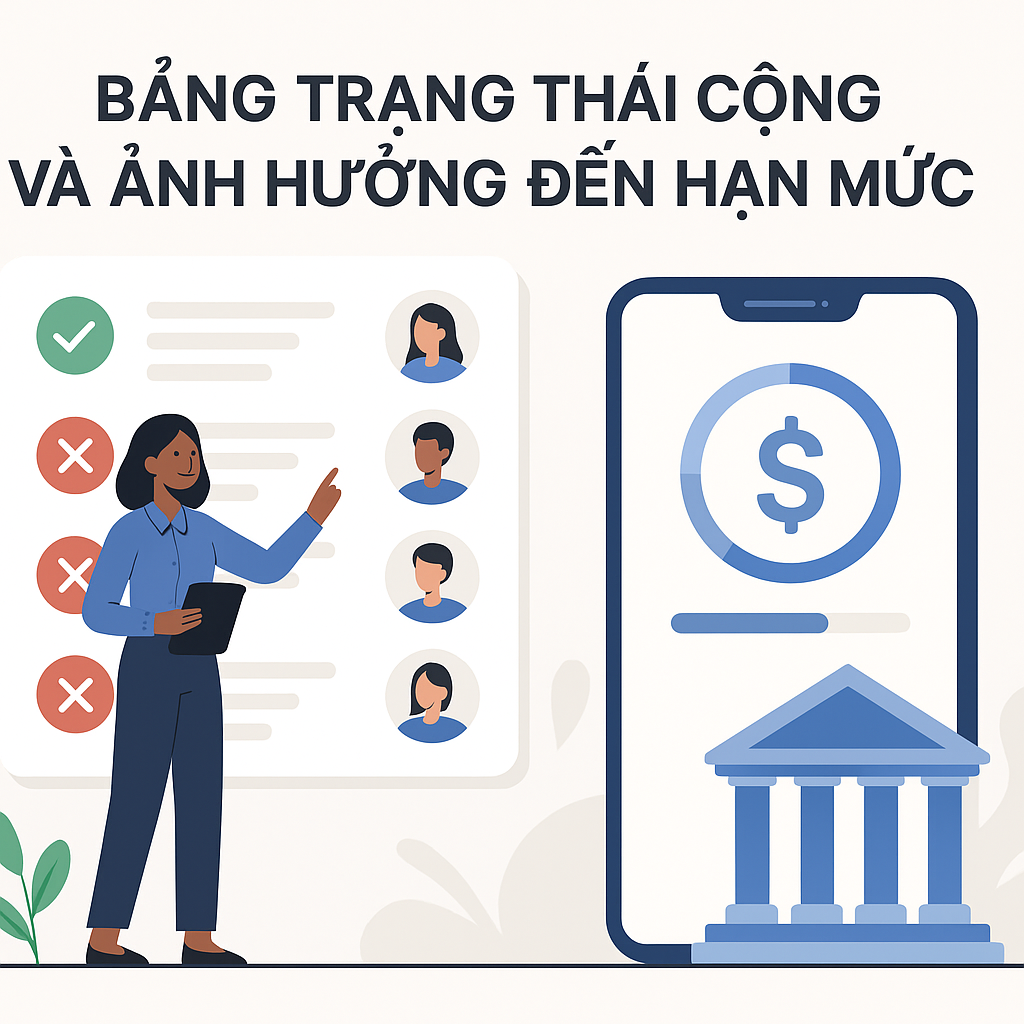
Only approved work generates receivable money. In the current flow, NK or client supervisors can approve; whoever approves validly first completes the confirmation step.
Why is Work Still Pending?
shift not ended;
missing check-in or check-out time;
location/QR/WiFi not meeting rules;
actual shift differs from schedule;
client checking exceptions;
supervisor not reached approval cutoff;
data recently modified;
verification needed for work at multiple locations.
What Should Employees Do?
Enter workday details, check status, and respond on the correct day. Do not ask the payment department to increase the limit when work has not been confirmed by the authorized department.
7. Cause 5: Today or Future Days Not Counted
The system has a day-blocking net based on the principle of only counting completed and closed work. Therefore:
tomorrow’s schedule does not create a limit;
today’s morning check-in does not create immediate receivable money;
ongoing shifts are not yet completed work;
night shifts past midnight may need to wait for completion and workday determination.
This is a core control ensuring Earned Wage Access adheres to completed work wages, rather than granting money based on projected work.
8. Cause 6: Approved Work Recently Modified
Clients can modify check-in/out times or shifts on their portal and work source. When approved work is modified, the system automatically downgrades the status to pending approval and logs before/after changes.
Why Does the Limit Decrease or Not Increase?
Because the new record has not been re-approved. The system no longer considers the old version as a reliable basis after data changes.
Solutions
ask the supervisor for the reason for modification;
check if the new time/shift is correct;
wait for the authorized person to re-approve;
if money was received from previous work, request an explanation for handling discrepancies.
Do not delete old records or create new work to “compensate” without understanding the cause; this may create duplicate data.
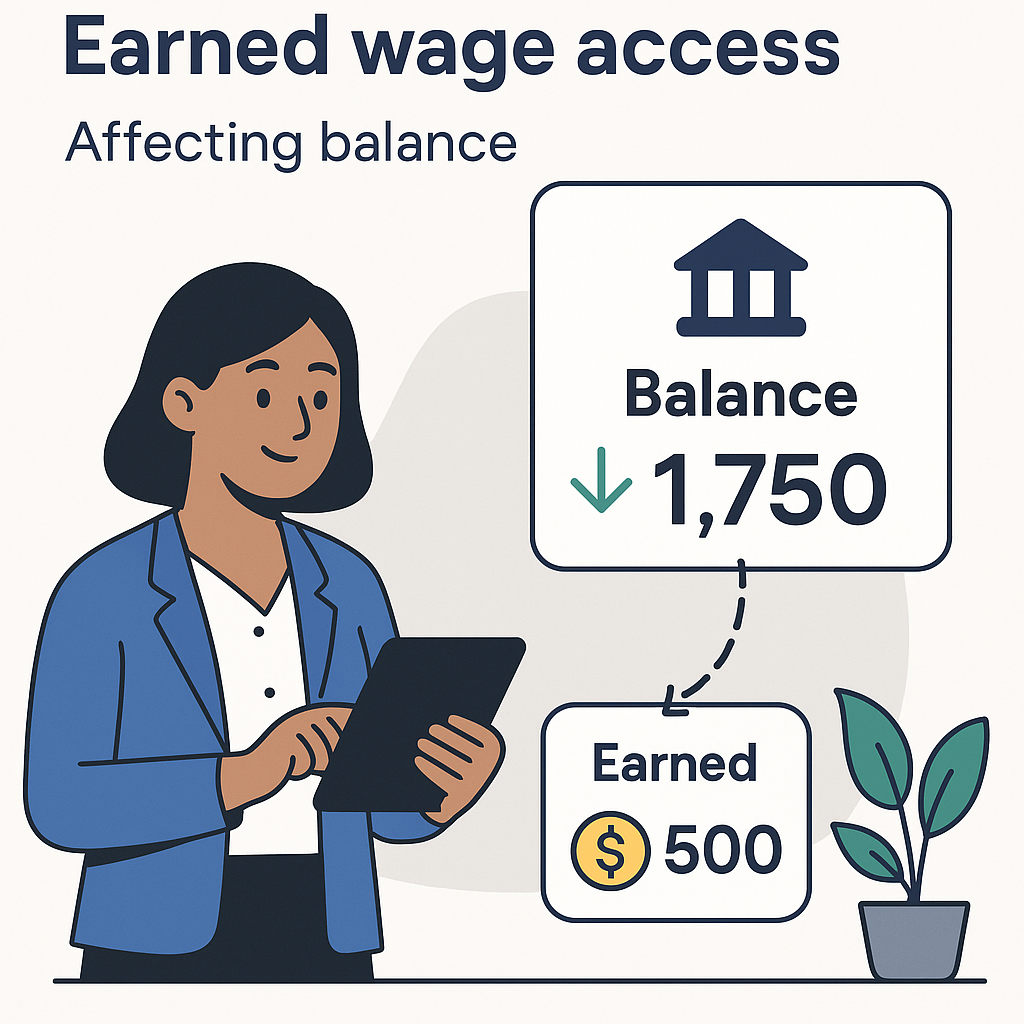
9. Cause 7: Reserve Hold Covering Latest Work
(End-of-period settlement: see How Much is Left After Receiving Earned Wage Access?.)
Depending on the client, the system may hold:
the most recent workdays; and/or
a 10.5% rate when the advance meets conditions/configuration thresholds.
The reserve hold is the portion not yet open for early receipt, not a fee, and not lost money.
Example Illustration
Suppose an employee has 2 approved workdays, a rate of 300,000 VND/day, while the client configures to hold the two most recent workdays. Both days currently fall within the hold, so the available amount may be zero.
When additional work is approved, older days may exit the hold area and begin creating available amounts, depending on actual rules.
> Example only explains the principle. NK needs to confirm display and hold configuration order before official publication.
10. Cause 8: Employee Has Received All Available Amount
Many small transactions during the period can add up to the entire receivable portion.
Example:
eligible money after hold: 2,000,000 VND;
first receipt: 500,000 VND;
second receipt: 700,000 VND;
third receipt: 800,000 VND.
Total received is 2,000,000 VND, so the remaining amount is zero until more eligible work or valid data changes occur.
Employees need to view total received during the period, not just the most recent transaction. Received amounts will be reconciled into the end-of-period salary to avoid double payment.
11. Cause 9: Remaining Amount Below Minimum Transaction Level
At the time of verification, the default minimum for each transaction is 50,000 VND. If the available amount is only 49,000 VND, the app may still show a value but not allow order creation.
The system rounds down to the nearest 1,000 VND. Therefore, the internal calculation before rounding and the displayed amount may differ slightly.
Values are configurations; employees must check notifications on the app instead of assuming this level does not change.
12. Cause 10: Reached Per Order or Daily Cap
Verified default values:
Limit Type | Default Level |
|---|---|
Maximum per order | 3,000,000 VND |
Maximum per person per day | 5,000,000 VND |
Two Different Situations
4 million VND available but can only create a maximum order of 3 million VND: hitting per order cap, not losing 1 million VND.
Total 5 million VND received in a day: may need to wait for another day even if the period still has a limit, depending on configuration.
The code also has a limit table by seniority, but NK needs to confirm whether this feature is enabled in actual operations before using it to explain to employees.
13. Cause 11: Client Has Not Enabled Auto Withdrawal
The technical automation chain exists, but auto withdrawal flags are defaulted off and NK gradually enables them per client after trial money matching.
Signs
employee has complete records and approved work but does not see the withdrawal function;
colleagues at other clients have used it;
new client in pilot phase;
feature enabled for a group but not fully opened.
This is not an issue employees can fix themselves. Ask NK/client deployment contact, do not create another account.
14. Cause 12: ID Records Not Meeting Conditions
Auto withdrawal conditions check ID photo and OCR results matching records. The limit may not be usable when:
no ID photo;
blurry, overexposed, or missing corner photo;
ID number not matching ERP;
using someone else's documents;
duplicate records;
recently changed documents but not updated.
Employees should update through official channels. Do not send ID photos to personal accounts claiming support and do not post in large chat groups.
15. Cause 13: VPBank Account Not Verified
The standard automatic flow requires a VPBank account in the employee's name.
The system:
receives account number;
checks account holder name via VietQR;
matches with employee name;
locks account number after verification.
Common Errors
entering wrong account number;
entering card number instead of account number;
bank name returned not matching records;
using a relative's account;
inactive account;
employee requested account change but verification not completed.
The source code has exceptions for superadmin to link other banks, but this is not the default flow. Employees should not consider exceptions as a self-registration option.
16. Cause 14: Device or Account Under Safety Control
The system has a one-person-one-device principle and anti-fraud controls in timekeeping. Some situations may require verification:
changing phone;
sharing device with others;
reinstalling app or changing SIM;
device detected fake GPS;
proxy timekeeping;
signs of account takeover;
recently changed payment information.
Do not attempt to bypass controls with emulators, fake GPS, or borrowing phones. Contact official channels to update devices and verify identity.
17. Cause 15: Previous Transaction in Unclear State
(See also: Withdrawing Earned Wage Access but Money Not Received.)
When an employee has submitted a request but the bank has not returned a definite result, the system holds the transaction pending and checks every 5 minutes. Do not automatically assume failure as it may lead to double payment.
What Should Employees Do?
check transaction status;
verify VPBank balance/history;
do not resend;
save transaction code and time;
contact support if beyond published time;
do not change account during reconciliation.
The system also reconciles VPBank statements T+1 at 08:00 daily for the previous day's transactions. NK needs to publish specific SLA so users know when to wait and when to report.
18. Three-Minute Self-Check Process
Step 1: Select the Correct Workplace
If working for multiple clients, check each place and corresponding work period.
Step 2: Open Work Details
See which days are missing, pending, and approved.
Step 3: Check Update Timing
Compare with the 30-minute Sheet cycle or 03:00 ERP. In-app timekeeping, though real-time, still requires approval.
Step 4: View Limit Formula
Cross-check money by work, received amounts during the period, reserve, and remaining amount.
Step 5: Check Transaction Conditions
ID, VPBank account, minimum level, order cap, daily cap, and client status.
Step 6: Check Transaction History
If there is a pending/awaiting reconciliation order, do not resend.
Step 7: Submit Ticket with Sufficient Data
Clearly state if the issue is with work, limit, or transaction; attach necessary evidence and mask sensitive data.
19. Who to Report Issues To?
Issue | Appropriate Contact |
|---|---|
No records/workplace | HR or NK Operations |
Incorrect timekeeping code | NK/client supervisor |
Missing or incorrect work | NK/client work approval supervisor |
Work modified/pending approval | Authorized person at workplace |
Incorrect formula or reserve | Product/EWA Operations/Payroll |
ID mismatch | Verification channel/authorized HR |
VPBank mismatch | Account/bank support |
Pending transaction | EWA Payment Support/reconciliation |
Suspected account takeover | Security/Risk, emergency priority |
Employees should receive a unique ticket number for tracking. If transferred, the internal system should move the case with evidence instead of requiring users to resend all information.
20. Sample Content for Support Requests
> My name: [full name]
> Client/workplace: [name]
> Date/shift to check: [date, shift]
> Timekeeping code: [code]
> Symptoms: [no work/pending work/limit zero/cannot create order/pending transaction]
> Transaction code if any: [code]
> Occurrence time: [hour, date]
> I have checked: [workplace, work status, received history, account]
Do not include OTP, password, or full ID photo in the sample. Only provide documents when requested by official channels and with appropriate protection measures.
21. App Notifications That Should Be Clearer
Instead of just stating “not eligible,” the system should categorize messages:
“Workplace records not synchronized — please contact HR.”
“Work on 02/09 pending client approval.”
“Two most recent workdays under reserve hold.”
“You have received all available amounts during the period.”
“Remaining amount below minimum transaction level.”
“You have reached today’s transaction cap.”
“VPBank account not verified.”
“Client has not enabled auto withdrawal.”
“Previous transaction pending reconciliation — do not resend.”
Each notification should have the correct action button: view work, request adjustment, verify account, or open ticket. This is a proposal to improve experience, not a confirmation that all notifications above are in the current version.
22. Data Protection When Handling Issues
Support may involve ID, work, client, account, and transaction data. NK and clients need to:
only request necessary data;
use official channels;
mask account numbers when displayed;
assign rights by workplace;
log who views/edits history;
not put personal data in large groups;
have a ticket and evidence retention period;
transfer cases without widespread data copying.
The Personal Data Protection Law No. 91/2025/QH15 and Decree 356/2025/ND-CP take effect from January 1, 2026. Support processes must be reviewed by NK according to actual roles and data flows.
Frequently Asked Questions
Why hasn't my limit increased even though I worked today?
Today’s unclosed day is blocked from the receivable portion by the system. The shift must be completed, data valid, and work approved before creating a limit.
Why is the limit still zero even though work is approved?
The work may fall under reserve hold, you have received all available amounts, the remaining amount is below the minimum, or the client/feature is not configured properly.
Will the limit change if the client modifies work hours?
Possibly. Approved work, when modified, automatically reverts to pending approval. Once the new version is approved, the system recalculates based on valid data.
How often is the work table on Google Sheet updated?
According to verified configuration, the system synchronizes every 30 minutes, and the supervisor has an immediate sync button. The limit also depends on approval status.
Why can't I withdraw even though I have 40,000 VND available?
The default minimum for each order is currently 50,000 VND. Official values should be checked on the app as configurations may change.
I have 4 million VND available but can only receive a maximum of 3 million VND?
The default cap per order is 3 million VND. The remaining part is not lost; the ability to create another order depends on the daily cap and current conditions.
Should I press again if a transaction is pending?
No. The system holds the unclear status for reconciliation and avoids double payment. Save the transaction code, check VPBank, and contact support if beyond the published SLA.
Does changing phones affect my limit?
The limit is based on work, but transaction conditions may be affected by one-person-one-device control. Verify the device through official channels, do not create a new profile.
How do I check if I work for multiple clients?
Check each client as work, timekeeping code, rate, approver, and reserve are separated by workplace.
Is the reserve hold a fee?
No. It is the portion not yet open for early receipt to create a safety margin; eligible parts are still processed in the salary period.
Conclusion
An Earned Wage Access limit of zero can stem from four groups of causes: records/assignments, data and work approval, formula and limits, or verification and transaction status. Most issues can be narrowed down by checking the correct workplace, each workday, synchronization timing, received amounts, reserve, ID, and VPBank account.
Employees should not create new accounts, borrow accounts, or resend transactions to bypass errors. Save evidence, transaction codes, and send to the correct contact. For NK, displaying specific causes with appropriate action buttons will help reduce waiting and strengthen trust in Earned Wage Access.
References
---
Author: Nguyen Minh Khang — Strategy Team Specialist, Nhan Kiet Manpower Supply Co., Ltd.
Earned Wage Access Solutions for Businesses: Hotline 0937.022.655 · Email info@nhankiet.vn · Earned Wage Access for Businesses