
How Do the 6 Timekeeping Methods on Earned Wage Access Work? A Guide for Employees
How Do the 6 Timekeeping Methods on Earned Wage Access Work? A Guide for Employees
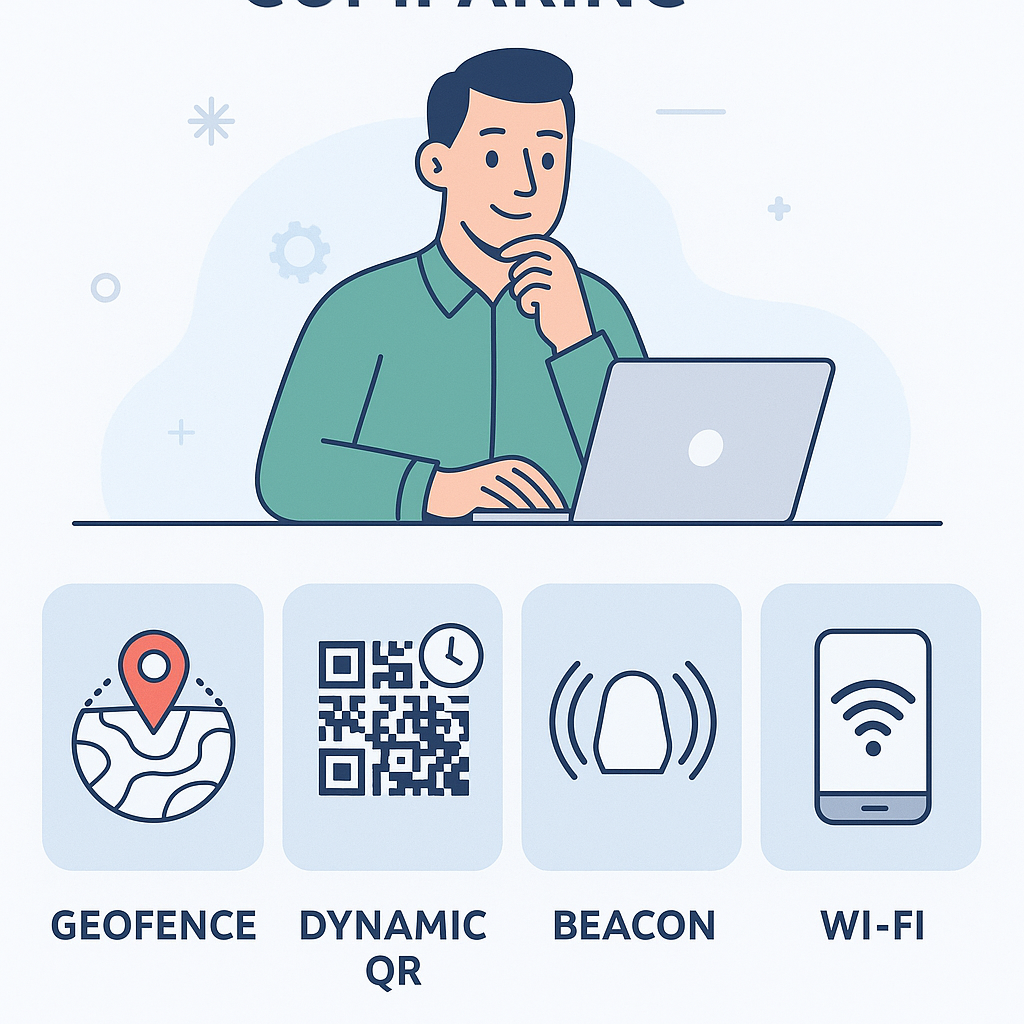
Short answer: Earned Wage Access supports six timekeeping methods in the app: GPS selfie, geofence, QR scan, Bluetooth beacon, WiFi, and Clock In/Out. Each client chooses a method suitable for their workplace. Employees cannot freely choose among the six methods but must clock in using the configured method.
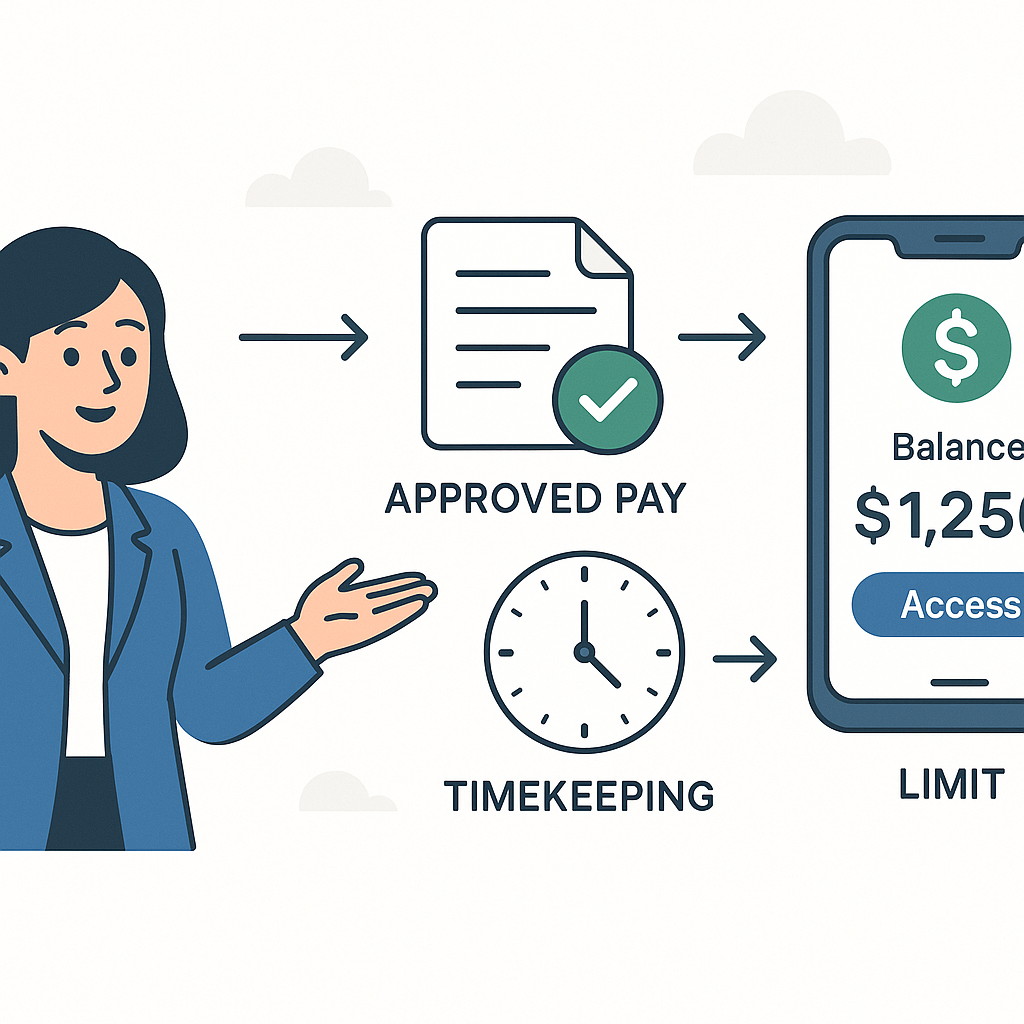
Successful timekeeping does not immediately increase the available amount. The time record must be valid and approved by Nhan Kiet or the client. Only approved time is included in the Earned Wage Access calculation.
> Note: Button names, radius, time windows, and shift rules can be configured per business; users should follow the information displayed in the app at their workplace.
Why Does Earned Wage Access Need Timekeeping Data?
(Overview: see What is Earned Wage Access? and What is Approved Time?.)
Earned Wage Access is a model for receiving a portion of wages already earned, not an advance on future days' wages. Therefore, the system needs to answer three questions:
On which days did the employee actually work?
Has that record been confirmed by an authorized person?
How much money does that workday correspond to according to the client's configuration?
The available formula verified in principle is:
> Available amount = Approved time × client's daily rate − amount already received in the period − reserved amount
The result is rounded down to the nearest 1,000 VND. The system blocks today and future days, so a new timekeeping entry does not automatically become an amount that can be withdrawn immediately.
Overview of Six Timekeeping Methods
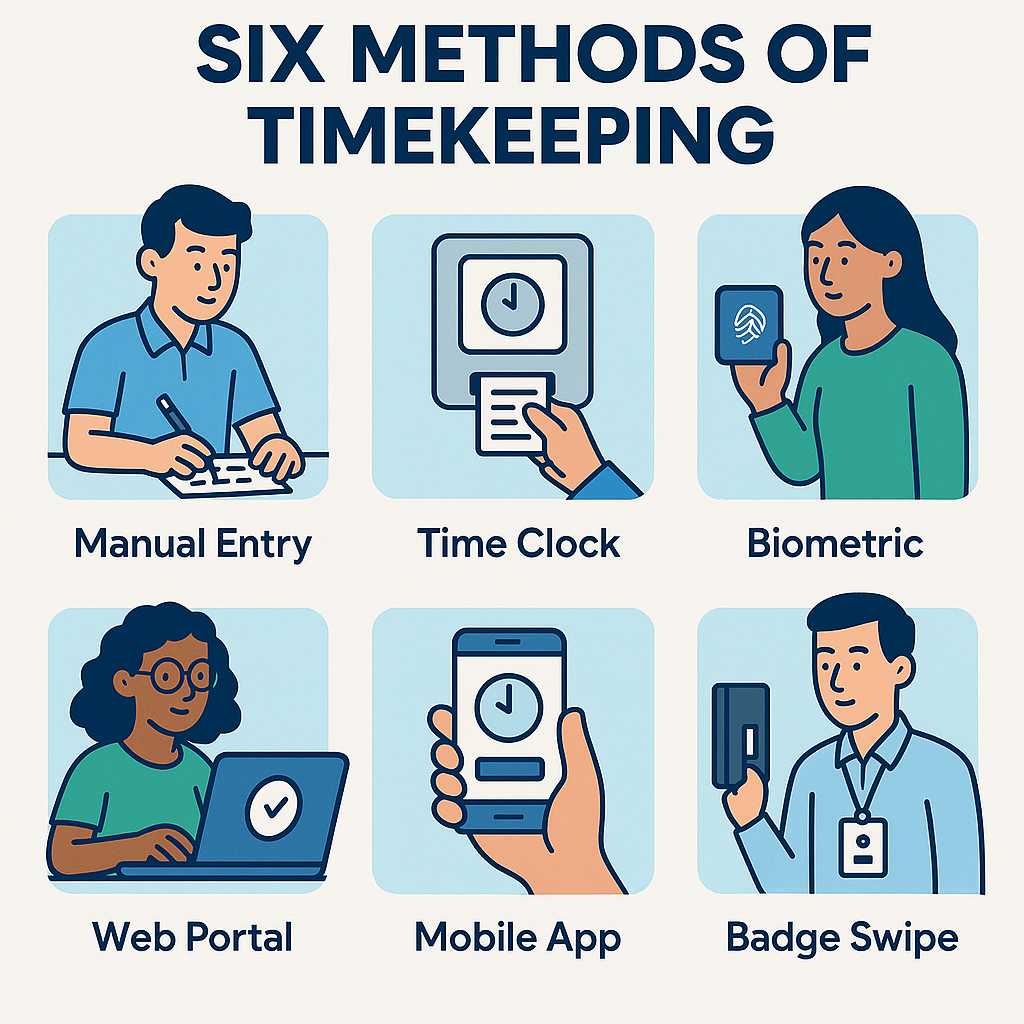
| Method | Main Signal | What Employees Need to Do | Suitable For |
|---|---|---|---|
| Selfie + GPS | Face photo, time, coordinates, address | Take a photo at the correct location and allow location access | Workplaces needing visual evidence |
| Geofence | Position within configured radius | Stand in the allowed area and enable location | Factories, warehouses, stores with fixed locations |
| Dynamic QR | QR code at the point, changes periodically | Scan the correct code within the shift window | Concentrated points with screens/timekeeping codes |
| Bluetooth Beacon | Bluetooth device signal on-site | Enable Bluetooth and tap to clock in | Indoor areas with unstable GPS |
| WiFi | Correct BSSID of registered network | Connect to the correct WiFi at the workplace | Offices, stores, points with fixed networks |
| Clock In/Out | Start and end time stamps | Tap In at start, Out at end | Shifts needing time duration recording |
No method is best for all places. The suitable method depends on the environment, infrastructure devices, required accuracy, user experience, and client management rules.
1. Timekeeping with GPS Selfie
How Does It Work?
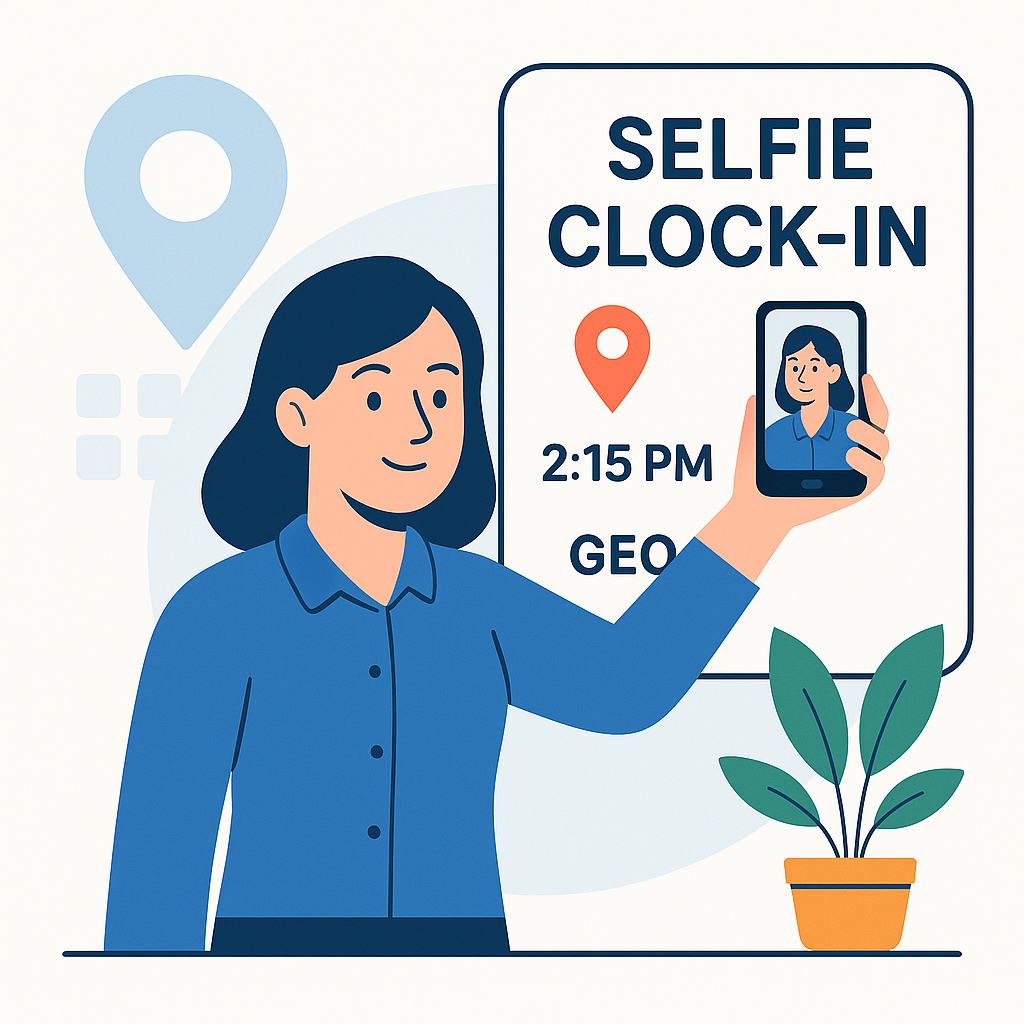
Employees open the timekeeping function, allow the app to use the camera and location, then take a photo at the workplace. The system can stamp information such as name, time, coordinates, and address on the photo.
The photo provides visual evidence of the person performing the action; GPS provides location evidence at that time. The combination of these two signals helps supervisors or clients verify more conveniently than a button press without data.
How to Clock In Correctly
Arrive at the correct location and time according to shift rules.
Enable location and camera permissions for the app.
Ensure GPS has determined a relatively stable position.
Take a clear face photo, do not cover the camera, and do not use pre-existing photos.
Wait for the system notification that the record has been received.
Open history to check if no confirmation is seen.
Why Might GPS Selfie Fail?
Camera or location access denied;
Phone's GPS not enabled;
Weak network causing incomplete photo upload;
Face covered, photo too dark or blurry;
Location outside the accepted area;
Device detects abnormal location signals;
Clocking outside the shift time window.
Privacy Note
Face photos and location are sensitive data in the labor context. Nhan Kiet must disclose the purpose of processing, scope of use, retention time, parties with access, and channels for exercising employee rights according to approved policies.
2. Timekeeping with Geofence
What is Geofence?
A geofence is a virtual geographic boundary set around a workplace. When employees clock in, the system checks if the device is within the allowed radius.
The default value in the source code is 200 meters, but this is configurable and may vary per client. Do not publicize 200 meters as a commitment applicable to all locations.
How to Clock In Correctly
Enable location services;
Allow the app to use precise location if the device supports it;
Stand within the configured work area;
Wait for GPS to stabilize before tapping;
Do not use fake location apps.
Why Does the System Say I'm Outside the Area Even at the Company?
GPS may be inaccurate in basements, inside metal-roofed factories, between tall buildings, or when the phone is in power-saving mode. The displayed address may also be the nearest address, not the exact name of the factory.
Employees should move to a more open area if safe, re-enable location, wait a few seconds, and try again. If many people encounter errors at one point, supervisors should check the coordinates and configured radius instead of asking each person to fix their phone.
3. Timekeeping with Dynamic QR
How is Dynamic QR Different from Regular QR?
Regular QR codes can be captured and sent to others. In the Earned Wage Access system, the QR code at the timekeeping point changes approximately every 30 seconds and is checked along with the shift time window.
This design reduces the possibility of using old code photos to clock in from elsewhere. Employees must scan the code displayed at the time of action.
How to Clock In Correctly
Open the QR scan section in the app.
Allow camera access.
Point the camera at the correct code at the timekeeping point.
Keep the phone steady until the system confirms.
If the code just changed, scan the new code instead of using saved photos.
Common Errors
Code just expired;
Scanning a photo or code sent via message;
Dirty, blurry, or poorly lit camera;
QR display screen glare;
Device with incorrect date/time;
Employee scanning outside the shift window;
Network not sending results.
Do not capture and share QR codes. Dynamic codes are created to confirm presence at the timekeeping point, not as a shared code for the entire shift.
4. Timekeeping with Bluetooth Beacon
What is a Beacon?
A beacon is a small device that emits a Bluetooth signal within a close range. The app identifies the signal of the registered beacon at the workplace and allows employees to clock in with a single tap.
This method is useful in factories or buildings where GPS may be unstable. Beacons do not necessarily require employees to pair Bluetooth like headphones; the app only needs to recognize the appropriate signal according to the system design.
How to Clock In Correctly
Enable Bluetooth;
Grant Bluetooth/nearby device permissions as required by the operating system;
Stand within the area where the beacon can be detected;
Open the app and tap to clock in;
Wait for confirmation before leaving the point.
If the Beacon Cannot Be Found
Check Bluetooth and app permissions first. If many people cannot find it, the beacon may be out of power, misplaced, or malfunctioning; report to the supervisor to check the device at the workplace.
5. Timekeeping with WiFi
What Does the System Check?
WiFi timekeeping does not rely solely on the network name visible to users. The system can check the BSSID—the identifier of the WiFi access point registered by the client.
Two networks may have the same name but broadcast from different devices. Checking the BSSID helps prevent creating a fake network with the same name elsewhere.
How to Clock In Correctly
Enable WiFi and connect to the correct network at the workplace.
Allow the app to access necessary permissions to identify the network.
Turn off smart network switching if the phone continuously leaves weak WiFi.
Open the app and clock in.
Check confirmation has been recorded.
Why Can't I Clock In Even on the Correct WiFi?
Phone connected to a different access point with the same name;
Business changed the access device but hasn't updated the BSSID;
Phone only saved the network but hasn't connected;
Location/network identification permissions turned off by the operating system;
Weak signal causing the phone to switch to mobile data;
Access point using multiple BSSIDs but the system hasn't declared them all.
If errors occur collectively after the business changes the access device, the technical department needs to update the configuration instead of asking employees to reinstall the app.
6. Timekeeping with Clock In/Out Button
How Does It Work?
Employees tap In when starting work and Out when finishing. The system uses these two points to form the work duration, then applies shift rules and approval processes.
This method is easy to understand but depends on employees remembering to perform actions at both ends of the shift.
How to Clock In Correctly
Tap In at the start;
Check the app has switched to working status;
Tap Out at the end;
Review history before leaving the workplace;
Report to the supervisor immediately if a point is forgotten.
What If I Forget to Tap Out or Tap Incorrectly?
Do not create multiple entries to compensate. Employees should report to the supervisor/client following the time correction process. The system allows authorized personnel to edit the start, end times, and shifts; an approved record that is edited will automatically revert to pending approval, while retaining the before and after history.
Who Chooses the Timekeeping Method for Earned Wage Access?
Each client is configured with a suitable timekeeping method. Employees at factory A may use QR, while employees at warehouse B use geofence or WiFi.
Allocation should be based on:
Indoor or outdoor environment;
A fixed point or multiple moving points;
GPS, WiFi, and mobile network quality;
Workforce size clocking in simultaneously;
Level of evidence the client needs;
Existing infrastructure;
Need to prevent proxy clocking;
Employee experience.
An employee working at multiple clients may encounter different rules per location. Time, timekeeping codes, rates, and approval statuses are also separated by client.
Anti-Fraud Layers Already in the System
Besides the unique signals of each method, the source code shows the system has controls such as:
Detecting and blocking fake GPS;
Binding one person to one device;
Limiting proxy clocking for colleagues at the same client;
Periodically changing QR codes;
Cross-checking WiFi BSSID;
Checking shift time windows;
Stamping time, location, and information on selfie photos;
Logging when authorized personnel edit records.
Do not disclose technical details that could help malicious actors evade controls. Communication content should only explain the principle: protecting the accuracy of workdays and the rights of employees who genuinely work.
Does Successful Timekeeping Immediately Increase the Limit?
If Timekeeping Is Not Recorded, Check in This Order

(See details: Clocked in but don't see workday or limit hasn't increased.)
1. Confirm Correct Method
Do not use QR if the client is configured for WiFi, or tap In/Out instead of selfie when not instructed.
2. Check Correct Place and Time
Geofence, QR, and shifts can all be limited by location or time window. Read the app notifications instead of tapping repeatedly.
3. Check Phone Permissions
Camera, location, Bluetooth, and nearby devices may be turned off by the operating system after a period of inactivity or when power-saving is enabled.
4. Check History
A delayed notification does not mean the record was not created. Open history to avoid duplicate clocking.
5. Save Evidence
Record the time, location, shift, error notification photo, and manager at the point. Do not publicly post coordinates, personal ID, or colleague data.
6. Report to the Right Contact
Wrong shift, missing in/out time, unapproved time: supervisor or client responsible for time;
Wrong timekeeping code/workplace: HR or Nhan Kiet management;
Many people with QR, beacon, WiFi errors: point management and technical;
Account/personal device errors: Earned Wage Access support.
Sample Report for Missing or Error Timekeeping
> I need support checking timekeeping. Name: …; employee ID/timekeeping code: …; client/workplace: …; date and shift: …; timekeeping method: …; time of action: …; current notification: … . I have checked history but do not see the record/see status … . Please have the supervisor check the data and guide the next steps.
If there is a photo, send the photo at the error time and hide unrelated information.
What Employees Should Not Do
Ask someone else to clock in for them;
Give account or phone to colleagues;
Use fake location apps;
Capture and send QR to someone not present;
Change system date/time to try to bypass shift window;
Tap In/Out multiple times to correct a wrong record;
Create a new profile when the device is locked;
Wait until the end of the period to report missing time;
Send personal ID, OTP, or password in group chats.
These actions can complicate data, affect time approval, and slow down the verification process of benefits.
Which Method Should Businesses Choose?
(By industry: see Earned Wage Access for Multi-Shift Manufacturing Businesses.)
Frequently Asked Questions
Can I Choose One of the Six Timekeeping Methods Myself?
Usually not. Clients configure the method for the workplace; employees use the designated method.
Why Is There No Money to Receive After Clocking In?
The record may be pending approval, belong to an unclosed day, or be within the reserved amount. Only approved time participates in the calculation of the available amount.
What Is the Default Geofence Radius?
The source code has a default value of 200 meters, but the radius can be configured per client. Rely on actual notifications in the app.
Can Captured QR Be Used?
It should not and usually cannot be used stably because QR changes approximately every 30 seconds, and transactions are checked according to the shift window.
Does WiFi Timekeeping Only Require the Correct Network Name?
No. The system can check the BSSID of the registered access point, not just the WiFi name.
Does Beacon Need to Connect Like Headphones?
Not necessarily. According to the design, the app recognizes the beacon signal near the timekeeping point; users need to enable Bluetooth and grant necessary permissions.
Can I Create Additional Entries If I Forget to Tap Out?
No. Report to the supervisor for correction according to the process. Edited records need to be re-approved and have a change log.
What to Do If GPS Is Incorrect?
Move to a more open area if safe, enable precise location, temporarily disable power-saving mode, and try again. If many people encounter errors, report to management to check configured coordinates.
Can One Person Clock In at Multiple Clients?
The system supports one person working at multiple places, but time and rules are separated by client. Choose the correct workplace before performing actions.
Who Approves the Time?
Nhan Kiet supervisors or authorized clients can approve; the first valid approver completes the confirmation step.
Conclusion
The six timekeeping methods of Earned Wage Access address different contexts: GPS selfie provides image and location evidence; geofence checks the area; dynamic QR confirms presence at the point by time; beacon suits indoor spaces; WiFi cross-checks access points; and Clock In/Out records work duration.
The important thing for employees is to clock in using the correct method, at the correct place, at the correct shift, and check the record after action. Timekeeping is just input data; time must be approved before generating an available amount. When errors occur, save evidence and report early to the correct contact, do not attempt to bypass controls or wait until payday to reflect.
References
---
Author: Nguyen Minh Khang — Strategy Department Specialist, Nhan Kiet Manpower Supply Co., Ltd.
Earned Wage Access Solutions for Businesses: Hotline 0937.022.655 · Email info@nhankiet.vn · Earned Wage Access for Businesses